Customer portal instructions
Did you have any questions about the Customer Portal or its use? Check out the user manuals and frequently asked questions below.

Frequently Asked Questions
New customers (currently only corporate customers) will automatically receive login credentials when their customer account is created.
If you already have a Ramirent account but haven’t received credentials or are unable to log in, please contact our customer service.
RamiSmart is designed for all our business customers. Please note that the portal is not yet available for consumer customers.
New business customers automatically receive access to RamiSmart when their account is opened.
Already a customer but don’t have access yet? Contact our customer service and we’ll set it up for you.
Why choose RamiSmart?
- Easy to use on both browsers and mobile devices
- Basic fleet management is completely free
- Additional features, such as site-specific emission calculations, available by agreement
Need help?
Our nationwide customer service is here for you. Open weekdays 6:30 AM – 4:30 PM.
Phone 0800 171 414
Please contact our customer service. Our representatives and specialists will investigate the issue and get back to you.
If you’ve forgotten your password, you can reset it via the “Forgot your password?” link on the login page.
You can view your orders by clicking the “My Orders” link on the Customer Portal homepage after logging in.
You can view your construction sites by clicking the “Sites” link on the Customer Portal homepage after logging in.
Access to user management is only granted to the company’s administrators. An administrator can create new users for the company and assign them levels of access, as well as remove and modify existing users. So, please contact your company’s Administrator.
User roles and access levels
Administrator
- Access to all functionalities and views in the customer portal at the corporate level
- Creating new users and editing and deleting existing users
- Creation of new construction sites and editing of information, as well as editing of construction site users
The role of the system administrator is recommended to be used judiciously, as at this level of access the user has access to all existing and later released functionalities and views at the corporate level.
Superuser
- Access to the company’s construction sites without separate site-specific access rights
- All site-specific access rights excluding access control rights
- Creation of new construction sites and editing of information, as well as editing of construction site users
- If the company has multiple customer numbers under the business ID for Ramirent, one or more customer numbers will be selected for the superuser when creating the user account, for which access rights are to be granted.
The main user role allows the user to manage enterprise-level (customer-specific) sites and site users without separate site-specific access rights.
User
- Access to those work sites for which the user has been granted permission.
Currently, the site-specific access rights are as follows:
Ordering
The user can order rental and sales products from Ramirent to the construction site through the customer portal.
List of equipments
The user can see the rented equipment at the construction site, make maintenance and pickup requests for the rented equipment, and change the estimated return date and comments for the product.
Access control
If RamiSmart access control is in use at the construction site, the user can navigate to the access control view through the access control link.
The user role is intended for use by the most of the users of the customer portal, but the company can use the roles at its own discretion, according to the user base and the manner in which the customer portal is used, in the way that best suits them.
In the Ramirent customer portal, the company can manage its own users through the ‘User Management/Käyttäjänhallinta’ functionality. Access to user management is restricted to the company’s administrators. The administrator can create new users for the company, set their access levels, and remove or modify existing users.
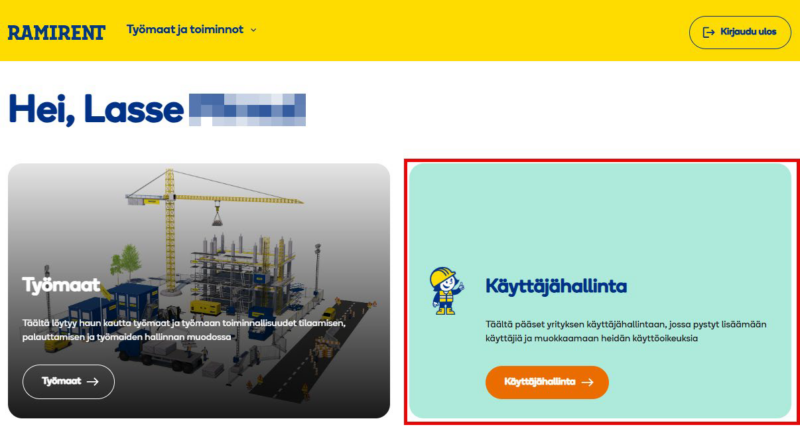
You can access the user management view by clicking the ‘User Management/Käyttäjänhallinta’ link on the homepage.
In the user management view, there is a list of all users in the company. The list shows the user’s basic information, access level, and the time of their last login. On the right side, next to the user’s information, there are 3 small icons with the following functionalities:
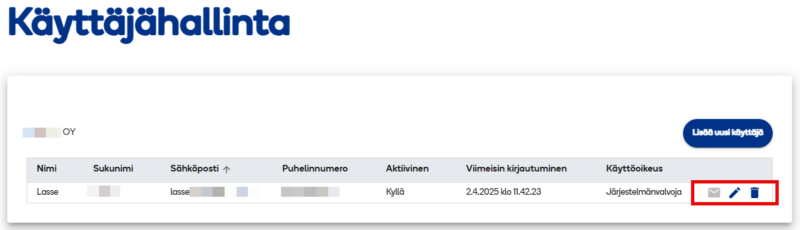
- Envelope
If the envelope icon is dark blue, it means the user has not yet activated the account. By clicking on the envelope, a new link can be sent to the user for account activation if necessary.
- Pencil
By clicking the pencil icon, you can edit the user’s access level, site-specific access rights, and basic information.
- Trash can
By clicking the trash can icon, a user can be removed from the company users, causing the username to disappear from the systems and become unavailable.
User’s general information can be easily viewed by clicking on the user’s name or another item related to that user in the list.
Through user management, it is possible to create new users for the company as well as to edit and delete existing ones. User management is only available to the Administrator. You can access the user management view by clicking the ‘User Management’ link on the homepage.
Adding a new user
Click the ‘Add new user’ button. In the opened view, the user’s basic information is added and the access level is selected as ‘User’.
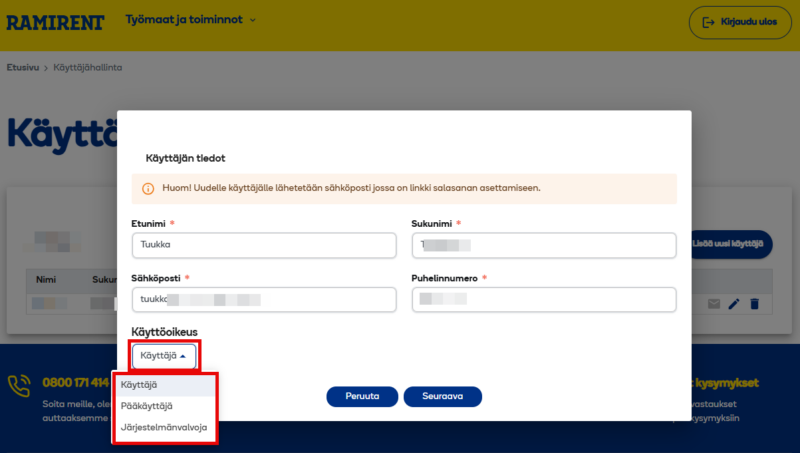
When the basic information has been filled in, click the “Next” button. In the next view, select the customer number and the corresponding work sites. Once the desired work sites have been selected, click the “Next” button.
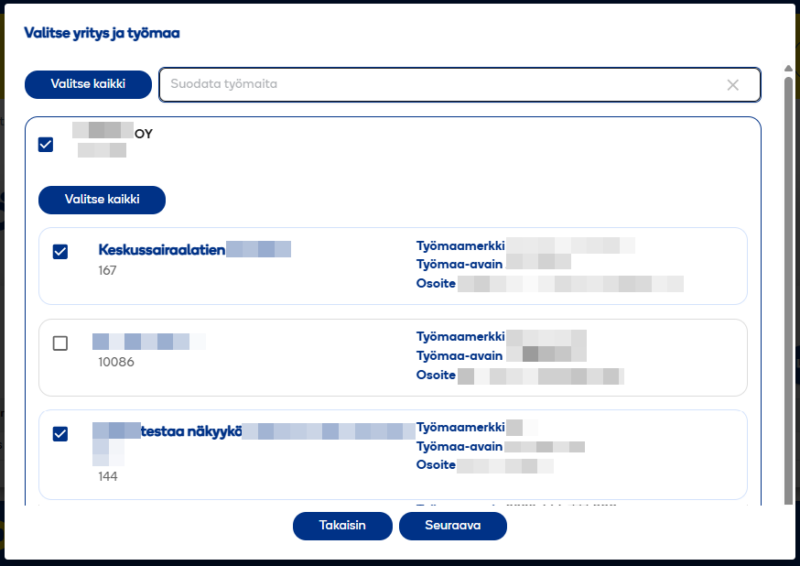
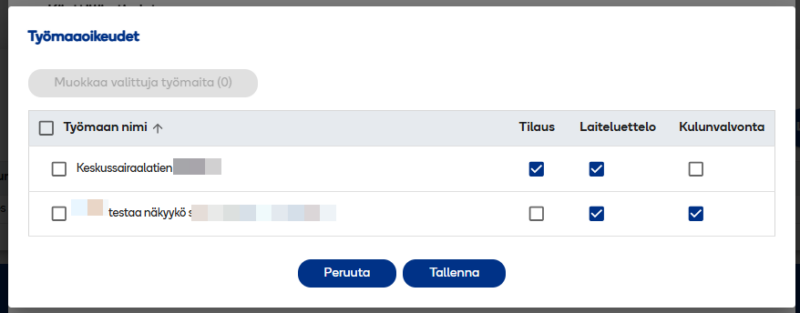
In the next view, the desired site-specific access rights are selected for the previously chosen construction sites for the user. Once these have been selected, click save. A message will be sent to the new user’s email after saving, containing a link for registration.
Adding a superuser
When adding a new superuser, the basic information is filled out in the same way as in the previous example, but the access level is selected as ‘superuser’ and the Roles are set to ‘Site Management’. Then click the ‘Next’ button.
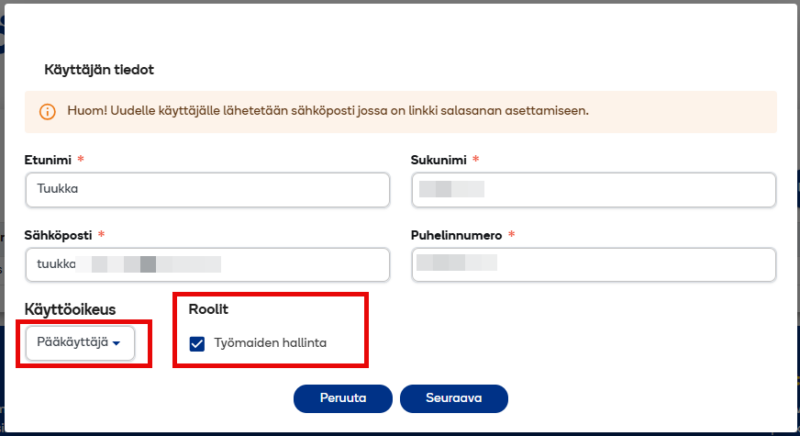
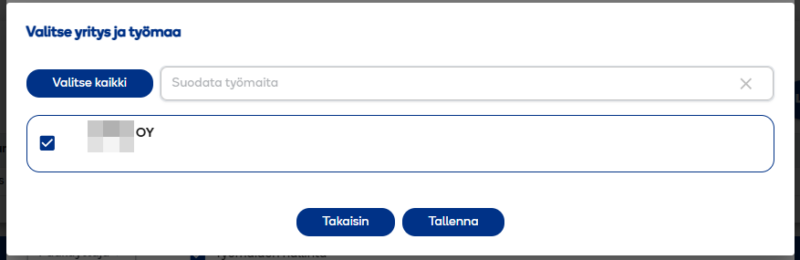
In the next view, the superuser selects the customer number (If the company has multiple customer numbers under the Ramirent business ID, one or more customer numbers can be selected). Once the suitable customer numbers have been selected, click the ‘Save’ button next. After saving, a message will be sent to the new user’s email containing a link for registration.
Adding a system administrator
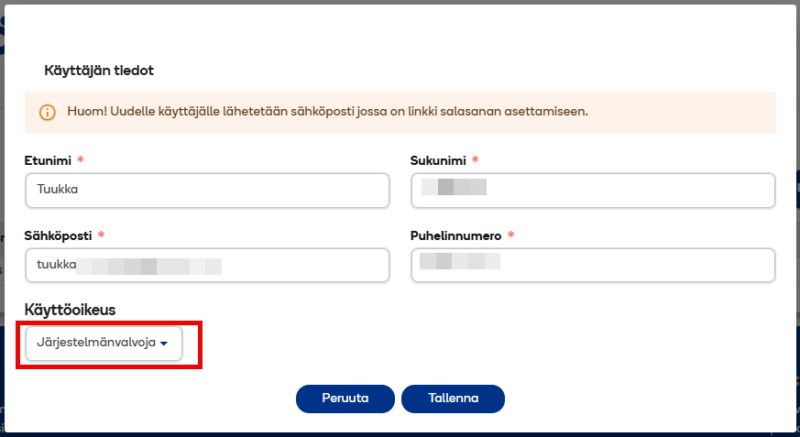
When adding a new Administrator, the basic information is filled in, the access level is selected as Administrator, and finally the ‘Save’ button is clicked. After saving, an email will be sent to the new user containing a link for registration.